How to Set a Custom Homepage on WordPress.com and Enable Coming Soon Mode (Beginner Guide)
Learn how to customize your WordPress.com homepage by setting a custom page. This beginner guide also shows how to activate Coming Soon mode while building your website.

If you’ve been following my WordPress.com beginner series here on The Solo Blogger, then by now we’ve already covered quite a lot.
I started by teaching how to launch a finance blog on WordPress.com. Then I talked about plugins, how they work, and how they help extend your website. And I also covered how WordPress.com allows bloggers to monetize their websites through paid content subscriptions.
But once your website is live, there is something important to know. Your homepage displays your latest blog posts automatically, and while that works perfectly, it doesn't always have to be the case.
Sometimes you may want visitors to see something completely different first.
- Maybe you want a beautiful landing page.
- Maybe you want your About page to become your homepage.
- Maybe you want a resource page highlighting your favorite tools and recommendations.
- Or maybe your website is still under construction, and you need to temporarily hide everything behind a Coming Soon page.
The good news?
WordPress.com gives you so much flexibility, allowing you to do all of this without needing any plugins or complicated setup.
In this tutorial, I’ll show you exactly how to:
- Set a custom page as your homepage
- Understand when each option makes sense
- Activate WordPress.com Coming Soon mode while building
Let’s walk through it.
First, How WordPress.com Homepage Settings Work
When you create a new website on WordPress.com, your homepage automatically displays your latest published blog posts. This means every time you publish a new article, WordPress.com automatically adds it to the front page of your website.
For regular blogs, this setup works perfectly. But WordPress.com also allows you to manually choose what visitors see first when they land on your website.
Instead of displaying your latest blog posts, you can choose to display:
- A custom homepage
- A landing page
- A “Start Here” page
- A product sales page
- An About page
- A newsletter signup page
- A resource page
This is controlled through your website settings.
Option 1: Set a Custom Page as Your Homepage
This is the most common setup for bloggers building professional websites. Instead of showing blog posts immediately, visitors first land on a custom page you designed.
For example:
Your homepage could include:
- A welcome message
- Introduction to your brand
- Featured blog posts
- Newsletter signup section
- Recommended tools
- Affiliate resources
Step 1: Create Your Homepage
Inside your dashboard go to: Pages → Add New Page
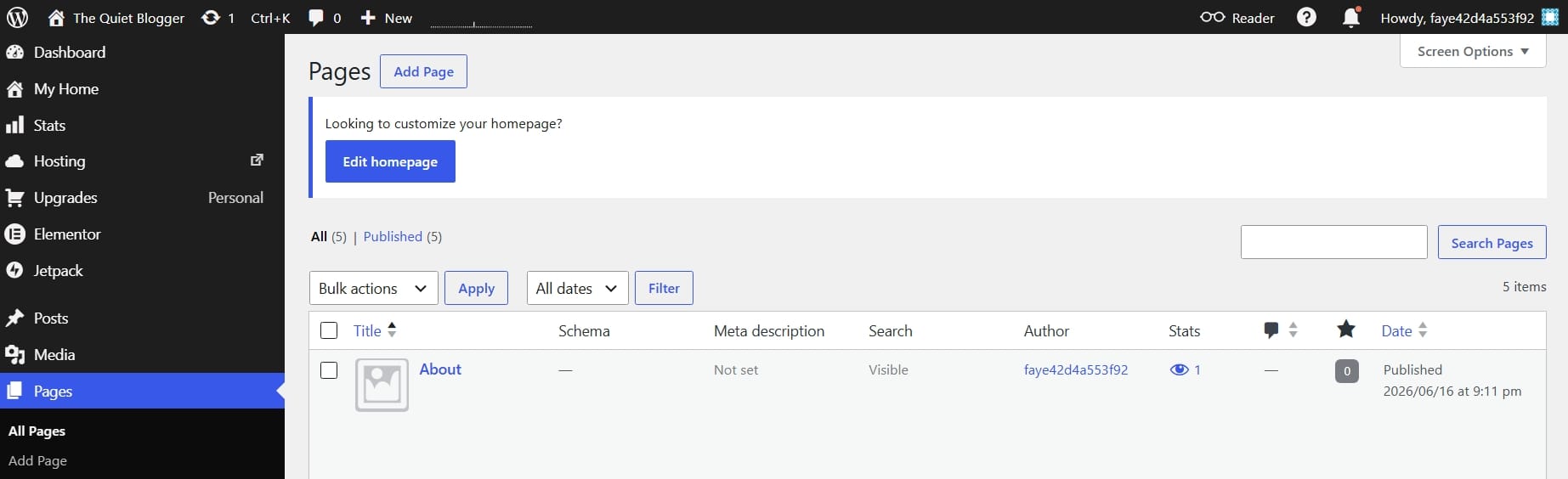
Page title examples for your own custom page:
- Home
- Start Here
- Welcome
- Resources
- About
This is where you create the page you want visitors to see first. Some page title ideas include:
- Home
- Start Here
- Welcome
- Resources
- About
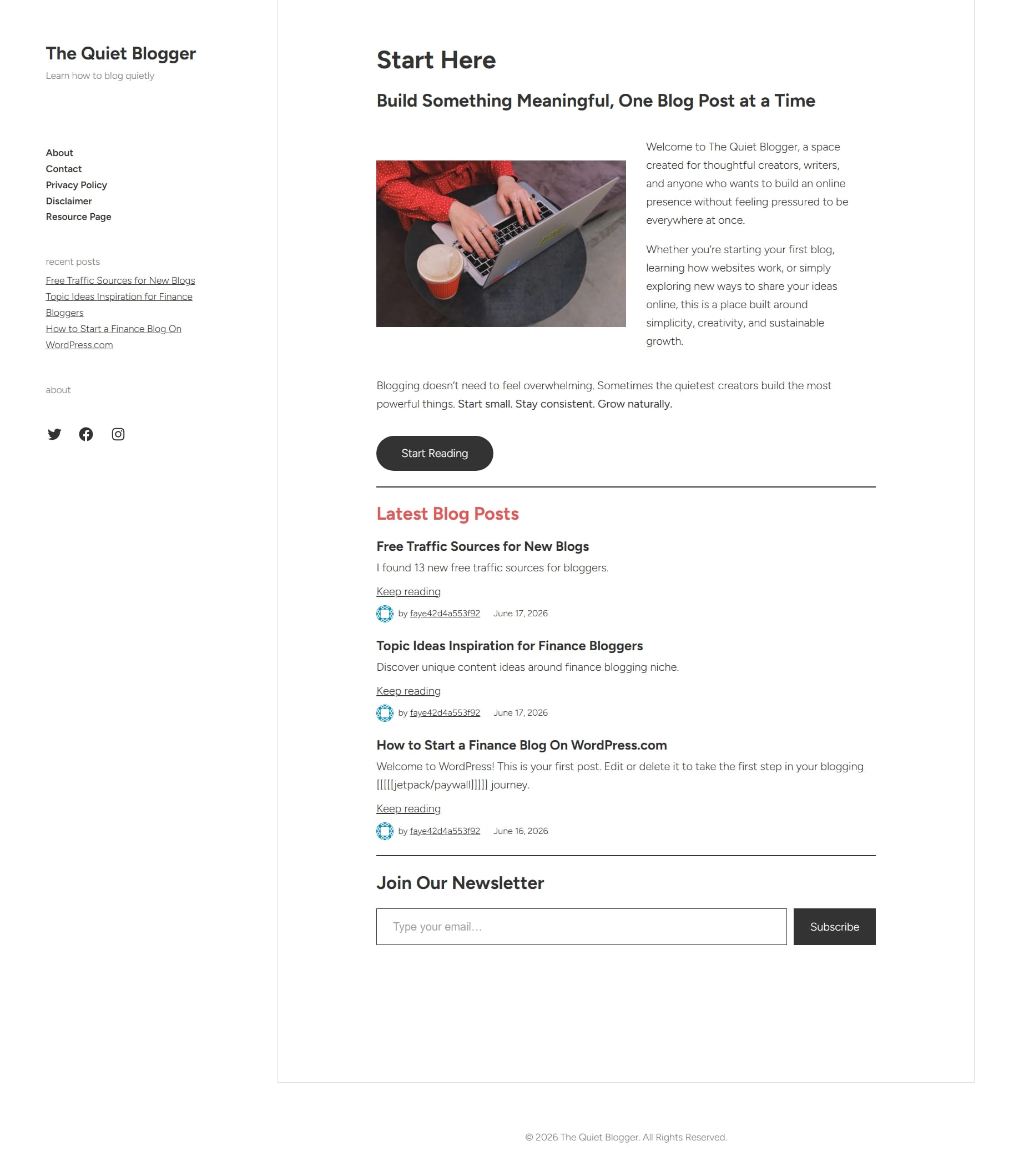
Once inside the editor, design the page however you want. For my own example site, I created a page called Start Here. I added:
- A welcome message
- Featured blog posts
- Newsletter signup section
- Recommended tools section
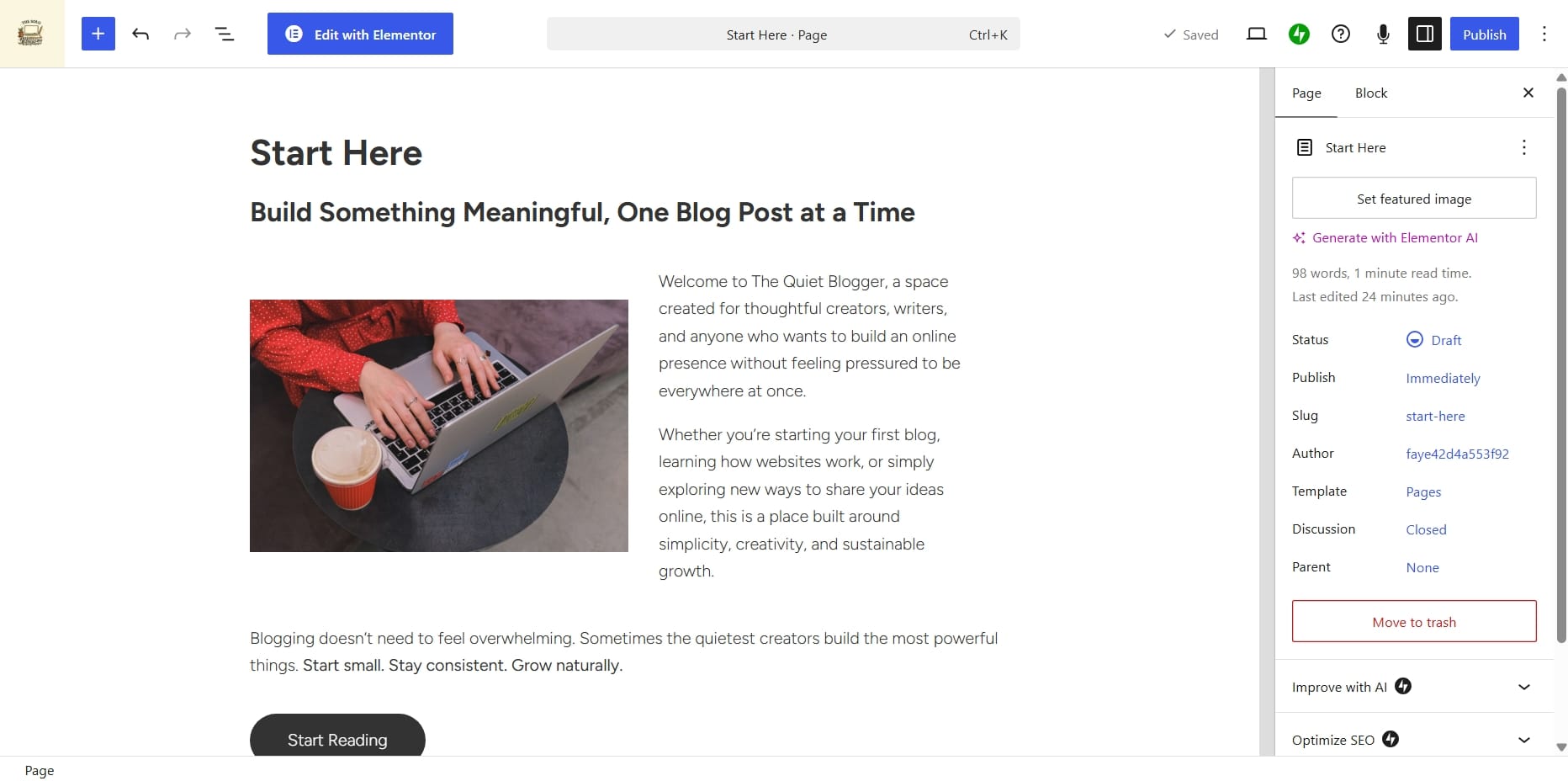
You can design yours however you like. It does not necessarily need to be a welcome page. You could create:
- A product landing page
- A freebie download page
- A service page
- A promotional page for a limited offer
The goal is simply deciding what visitors should see first.
Step 2: Open Reading Settings
Go to: Settings → Reading
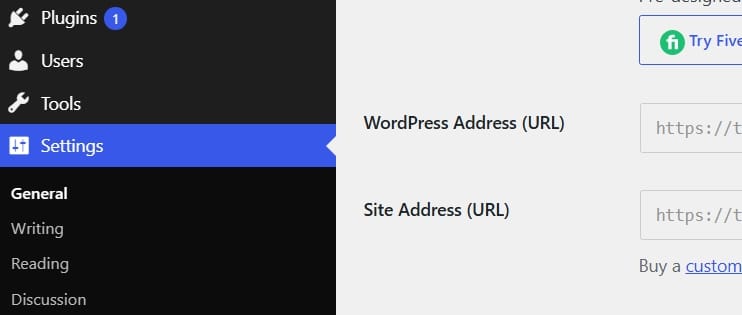
Under Reading, you will see: Your homepage displays.
Two options usually appear: latest posts and static page. Choose Static Page and under Homepage there's a dropdown for you can select the page you created.

Don't forget to save your changes and now you're all set.
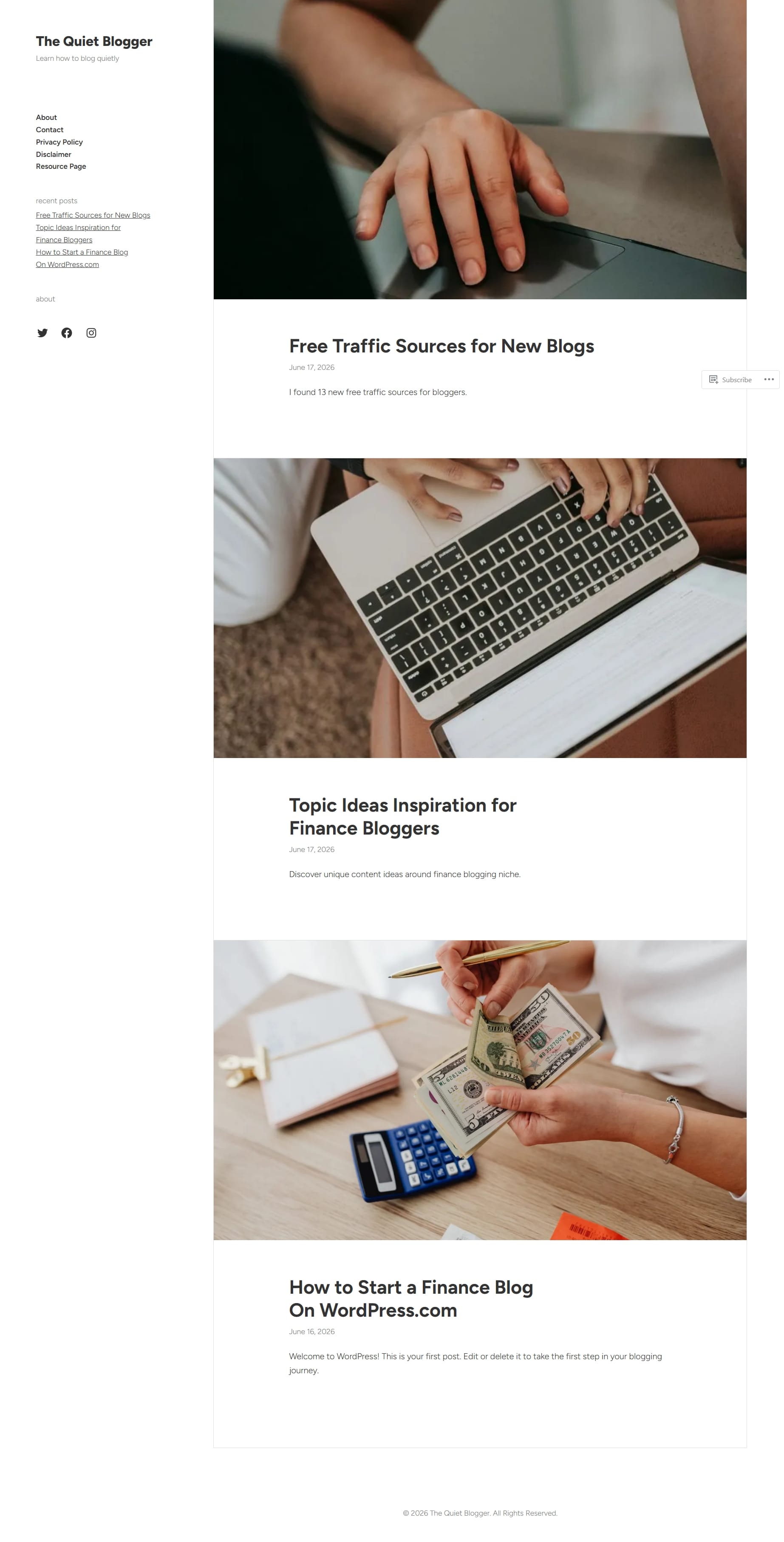
Here's my blog before update:
Here's my blog after the update:
When Should You Use A Custom Homepage Instead of Latest Posts?
A custom homepage gives you much more control over first impressions.
I recommend this setup if:
- You are building a personal brand
- You want stronger website branding
- You sell digital products
- You collect email subscribers
- You want visitors to take specific actions first
- You want to highlight important resources immediately
Instead of visitors randomly browsing blog posts first. You guide their experience intentionally.
How to Create a Separate Blog Page
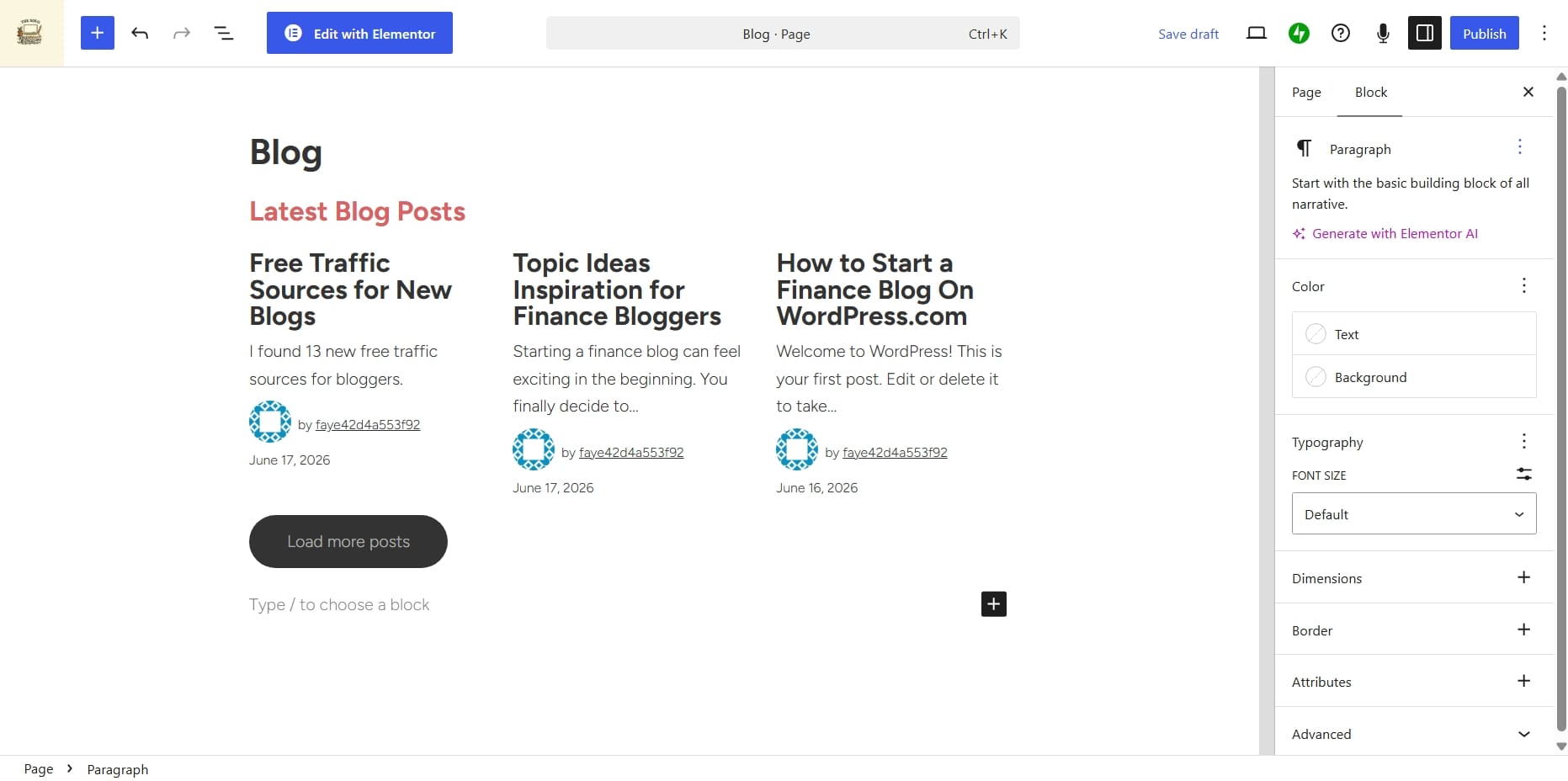
Once you choose a custom homepage, your blog posts will no longer appear on the homepage automatically. So, you’ll need a separate page dedicated to your blog content.
Create another page called: Blog
Then go back to: Settings → Reading.
Under: Posts Page select your Blog page.
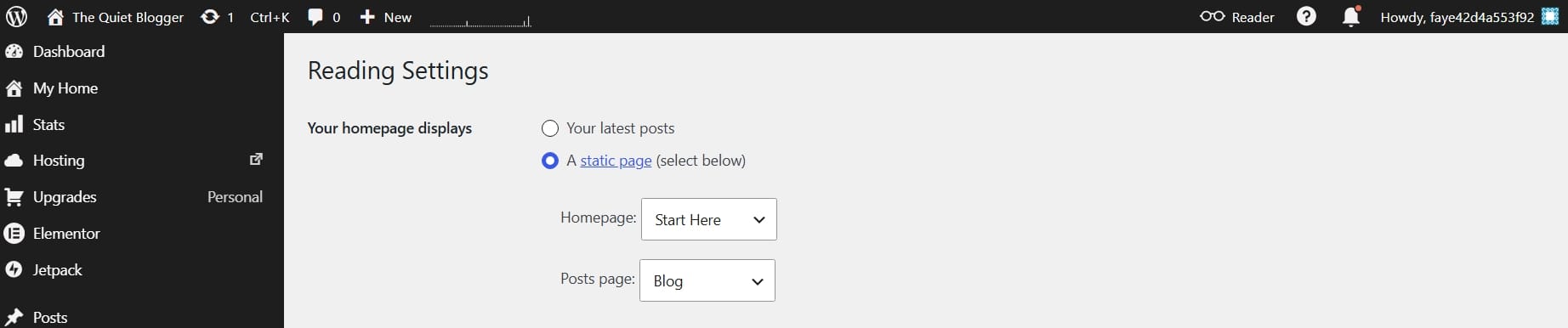
Now your setup looks like this:
- Homepage → Custom page
- Blog page → All published articles
This is usually the setup I recommend for bloggers building long-term websites.
You can always make your website prettier as well as purchase beautiful themes for your blog site.
How To Enable Coming Soon Mode On WordPress.com
Sometimes your website is not ready yet. You are still designing pages maybe you are migrating from another platform. This is when Coming Soon mode becomes useful while you continue building privately.
Inside your dashboard go to: Settings → Reading. Look for: Site Visibility.
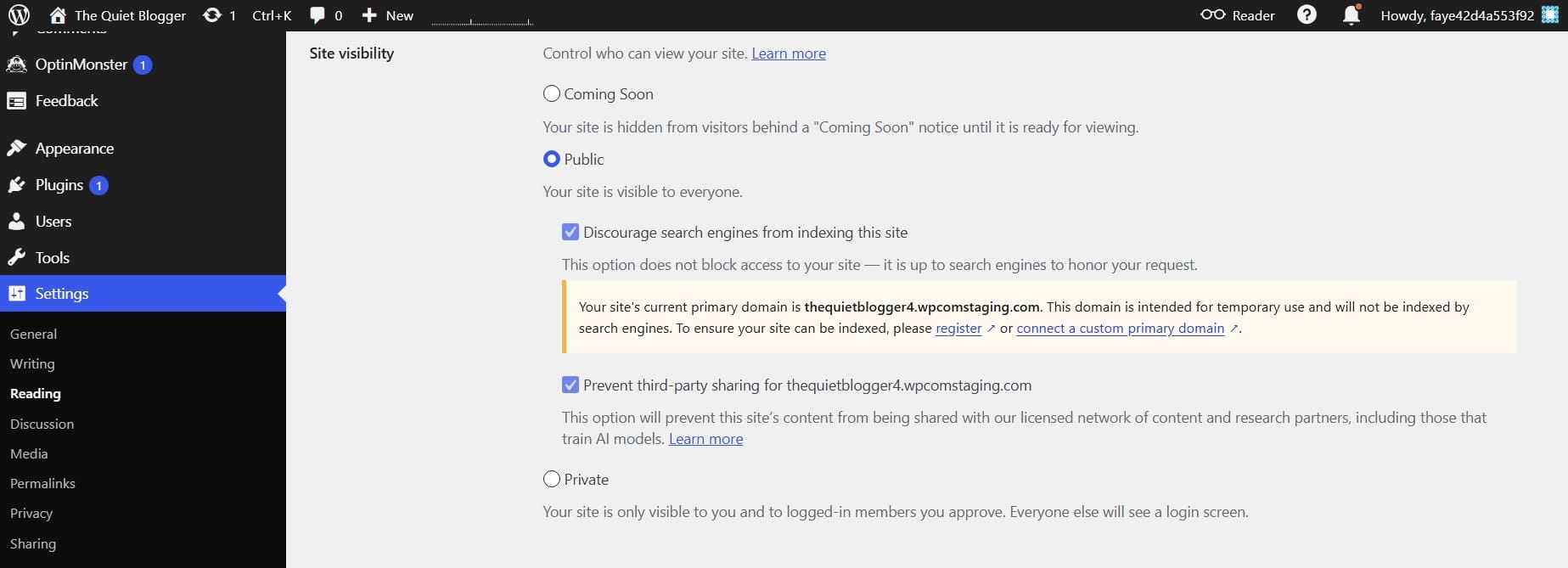
You will usually see:
- Coming Soon
- Public
- Private
Choose: Coming Soon
Save changes and you're done.
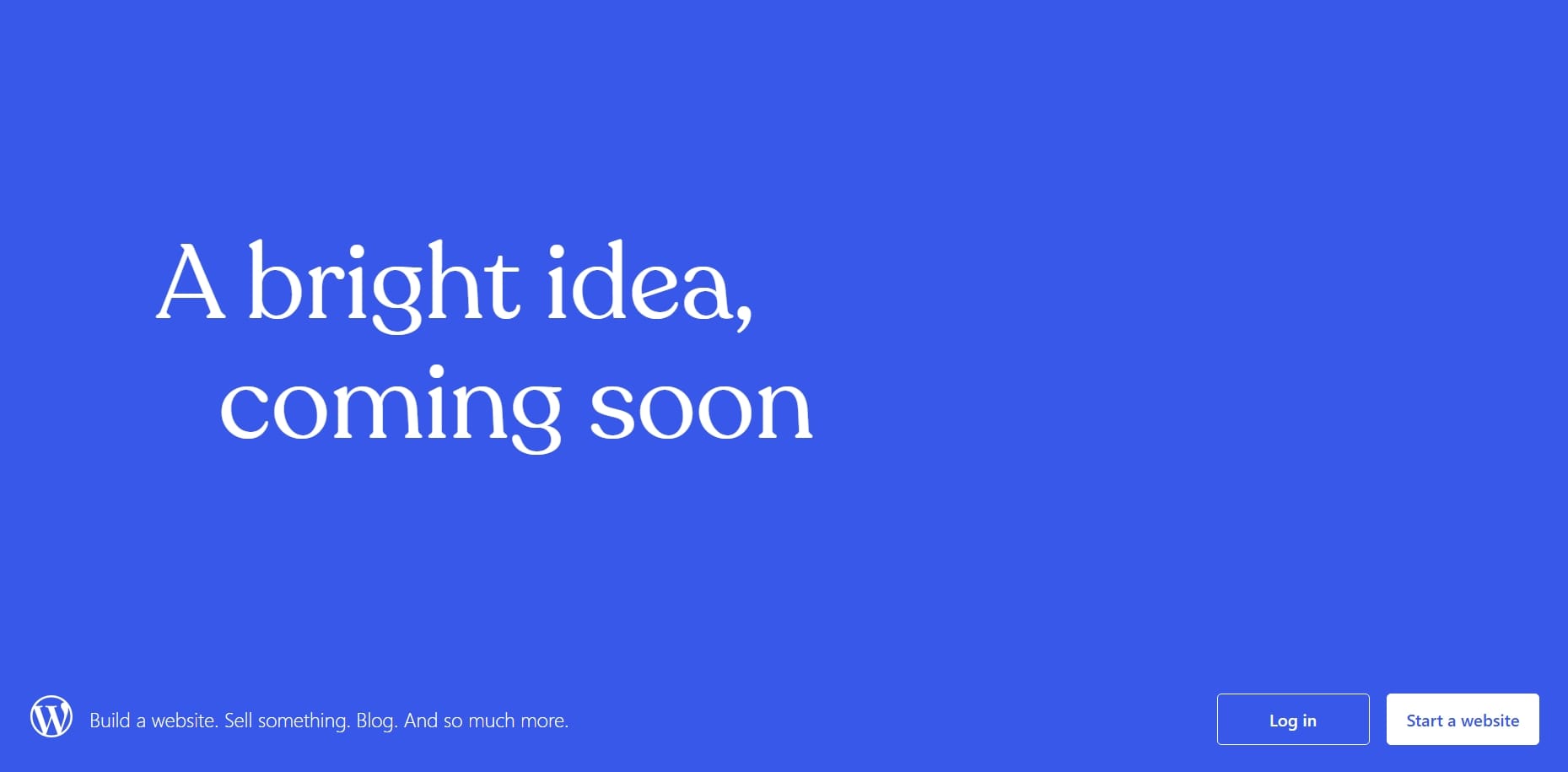
Your site is now temporarily hidden from visitors.
A Small Advantage of Using WordPress.com
One reason I recommend WordPress.com for beginners is because many features are already built directly into the platform. Unlike self-hosted WordPress (WordPress.org) where plugins become necessary immediately. WordPress.com already includes:
- Security protection
- Built-in SEO
- Analytics
- Contact forms
- Social sharing
- Email subscriptions
- Payment buttons
- Paid content subscriptions
- CDN performance optimization
- Related posts
- Backups
This means sometimes you do not need plugins at all. Always check built-in features first.
My Personal Advice
I have built websites on multiple platforms over the years and one thing I’ve learned is this: The homepage matters far more than people think.
- It controls first impressions.
- It shapes user experience.
- It guides visitors where you want them to go.
And if you are building a serious blog, do not simply leave everything on default settings. WordPress.com gives you flexibility and there's so much more you can do. Take advantage of it.
Even small adjustments can make your website feel far more intentional and professional.
Frequently Asked Questions
Can I set a custom homepage on WordPress.com free plan?
Yes. WordPress.com allows homepage customization even on the free plan.
Can I switch back to latest blog posts later?
Yes. You can change your homepage settings anytime.
Do I need plugins to change homepage settings?
No. This feature is built directly into WordPress.com.
Should every blog use a custom homepage?
Not necessarily. If your website is content-focused, the default blog feed works perfectly.
Can I create a separate page for blog posts?
Yes. WordPress.com allows you to assign a separate page where all future blog posts automatically appear.
Is Coming Soon mode available without plugins?
Yes. WordPress.com includes Coming Soon mode directly inside website settings.
If you don't have a WordPress.com account, you can easily create on today.
You might also like
9 Best Membership Software for Bloggers Compared
Looking for a way to turn your blog into a paid community, newsletter, course, or membership? Here are 9 membership platforms worth considering, organized by the type of experience you want to build.
How to Get a Free Business Email for Your Blog
Want a professional email like hello@yourblog.com without spending a fortune? Here's how bloggers can set up a custom business email using their own domain.
Dub Review: How to Create Branded Affiliate Links for Free
Learn how to create cleaner, branded affiliate links with Dub, organize your links, track clicks, and manage your affiliate URLs from one place.