What Are Plugins? and How to Install and Use Them on Your WordPress.com Blog
Confused about WordPress.com plugins? Learn what plugins do, how to install them safely, the best plugins for bloggers, and how to extend your WordPress.com site with powerful new features.

If you followed my previous guide on how to start a finance blog on WordPress.com, then by now you should already have your website live.
(And if you haven’t read that guide yet, I highly recommend starting there first.)
In the previous tutorial, we walked through choosing a niche, setting up WordPress.com, creating your blog structure, planning content, and understanding how blogging can eventually become a valuable online business.
But now comes the next step. At some point, you’ll want your blog to do more than simply publish articles.
- Maybe you want to improve your SEO.
- Maybe you want to build an email list.
- Maybe you want to sell digital products.
- Maybe you want better analytics, affiliate link management, or a more flexible website design.
This is where plugins become extremely important. Think of plugins as upgrades for your website.
They allow you to add new features, improve functionality, and gradually turn your simple blog into a real online business.
For this guide, we’ll continue using the exact same website we created in the previous tutorial and I'll walk you through everything you need to understand about plugins, what they are, when you need them, how to install them safely, and which plugins I recommend for bloggers building long-term websites.
What Are Plugins in WordPress?
The easiest way to understand plugins is to compare them to smartphone apps. When you buy a new phone, it already has basic built-in functions.
You can make calls, you can send messages, you can browse the internet. But the moment you install apps; your phone becomes more powerful.
Maybe you install Spotify for music, Google Maps for navigation, Instagram for social media and WhatsApp for communication. Your phone becomes customized around your needs.
WordPress plugins work exactly the same way.
A plugin is simply a piece of software that adds extra functionality to your website. Without plugins, your website would only have basic capabilities. Plugins allow you to transform your website into almost anything.
They can help you:
- Improve SEO rankings
- Build email lists
- Sell products online
- Manage affiliate links
- Improve website security
- Add payment systems
- Create advanced page designs
- Run membership subscriptions
- Display advertisements
- Improve analytics reporting
- Optimize website speed
- Create popups and lead forms
This flexibility is one reason WordPress powers such a large percentage of websites on the internet.
Here Is Something Important About WordPress.com
This is where beginners often get confused.
When most people search for WordPress tutorials online, they usually find advice built around self-hosted WordPress websites. That version of WordPress often relies heavily on plugins because many features are missing by default.
But WordPress.com works differently. It already includes many built-in features already. This means you may not need plugins for many common tasks.
Before installing anything, always ask yourself:
Does WordPress.com already include this feature?
Because often, the answer is yes.
Every WordPress.com website already comes with:
- Security protection
- Akismet spam protection
- Essential SEO tools
- WordPress.com visitor analytics
- Content Delivery Network (CDN)
- Contact forms
- Email subscriptions
- Built-in commenting system
- Social sharing buttons
- Donation buttons
- Payment buttons
- Paid content subscriptions
- Content backups
- Import and export tools
- Related posts
- Infinite scrolling
- Poll creation tools
- Content embeds
- Event countdown tools
- Galleries and slideshows
This is actually another advantage WordPress.com has over self-hosted WordPress.
You begin with many premium features already included. So do not install plugins simply because another blogger recommends them. Make sure to always check first.
Why Plugins Are So Powerful
Even though WordPress.com includes many features by default, plugins become more important as your blog grows.
Using our finance blog example from the previous tutorial. You begin by writing articles about:
- Budgeting
- Saving money
- Investing
- Credit cards
- Personal finance tips
At first, simple publishing is enough. But eventually your blog evolves. You may want to:
- Sell budgeting spreadsheets.
- Create premium finance courses.
- Build an email newsletter.
- Recommend affiliate products.
- Track ad revenue.
- Create landing pages for digital products and,
- Improve your search rankings.
Plugins help your website evolve alongside your business.
Important Things to Check Before Installing Plugins
One thing you should never do to your WordPress.com site is installing plugins carelessly. Every plugin directly affects your website. Poor plugins can cause serious problems.
There are several things you should check first.
1. Check The Last Update Date
Always check when the plugin was last updated. If a plugin has not been updated in several years, be careful. Older plugins often create problems because WordPress constantly changes.
An outdated plugin may stop working properly, break parts of your website, create security vulnerabilities and may become incompatible with newer updates.
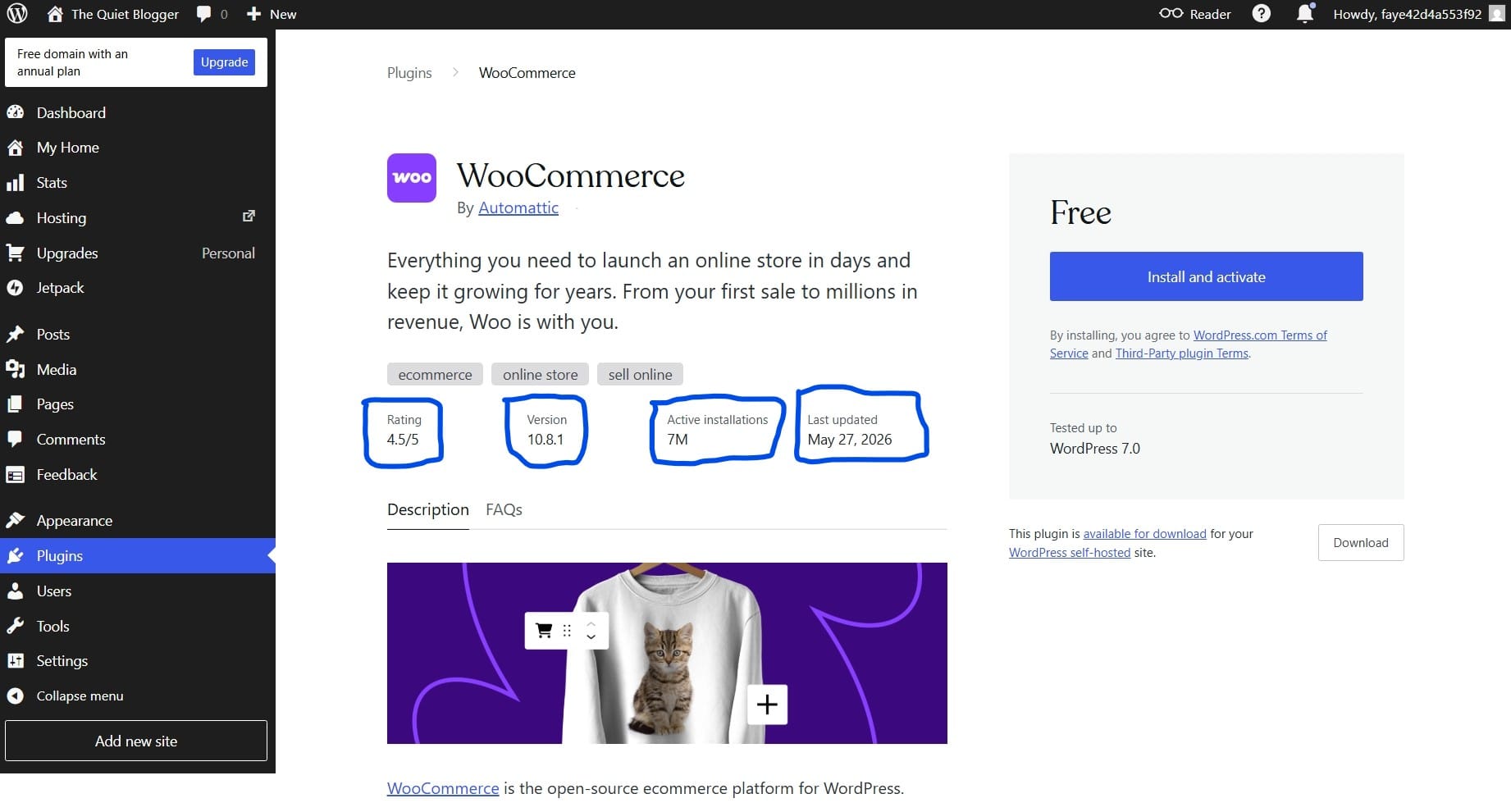
In the screenshot above, you can see WooCommerce plugin last updated date, which was on May 27th, 2026, its active installations (7 million), version and rating.
You can view this information about any plugin by simply clicking on it.
A general rule: Choose actively maintained plugins.
2. Read Reviews Carefully
Never install plugins blindly make sure to look at reviews/rating.
Pay attention to frequent bug complaints, compatibility problems, poor customer support and security concerns
Large user bases usually signal trust.
3. Install Only What You Actually Need
One of the biggest mistakes you can make as a new blogger making use of WordPress.com is plugin overload.
Too many plugins may slow your website, cause software conflicts, increase security risks and make updates harder
Best Plugins Bloggers Should Install
Now let’s talk about plugins that you may need as blogger and would help build your blog into a real business.
1. Elementor Website Builder
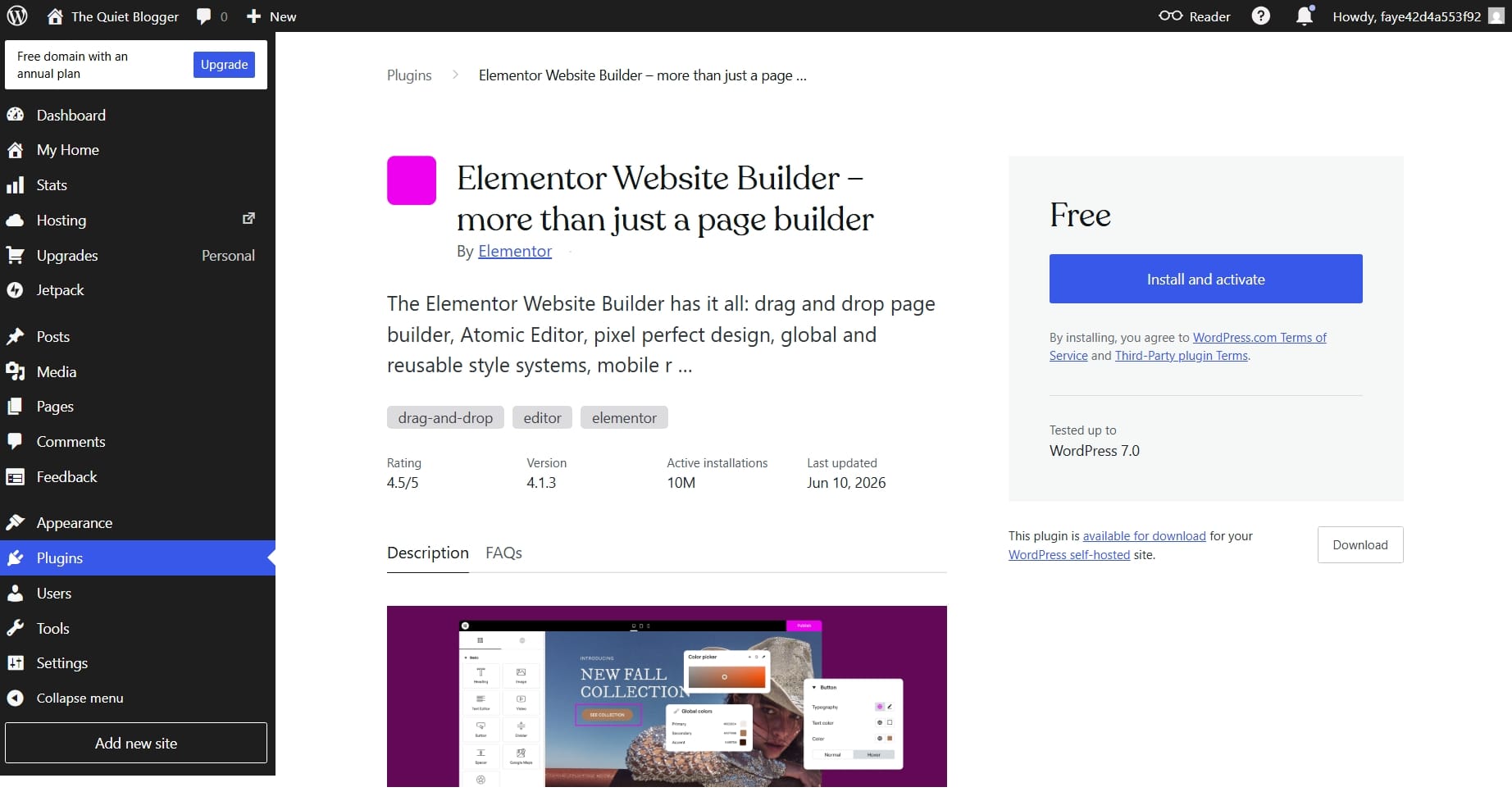
Elementor is one of the most popular page builder plugins in the WordPress ecosystem and is perfect for bloggers who want greater design flexibility.
Instead of manually building pages block by block, Elementor allows you to visually drag and drop different elements exactly where you want them.
This makes it much easier to create homepage designs, landing pages, product pages, sales pages and custom layouts.
2. WooCommerce
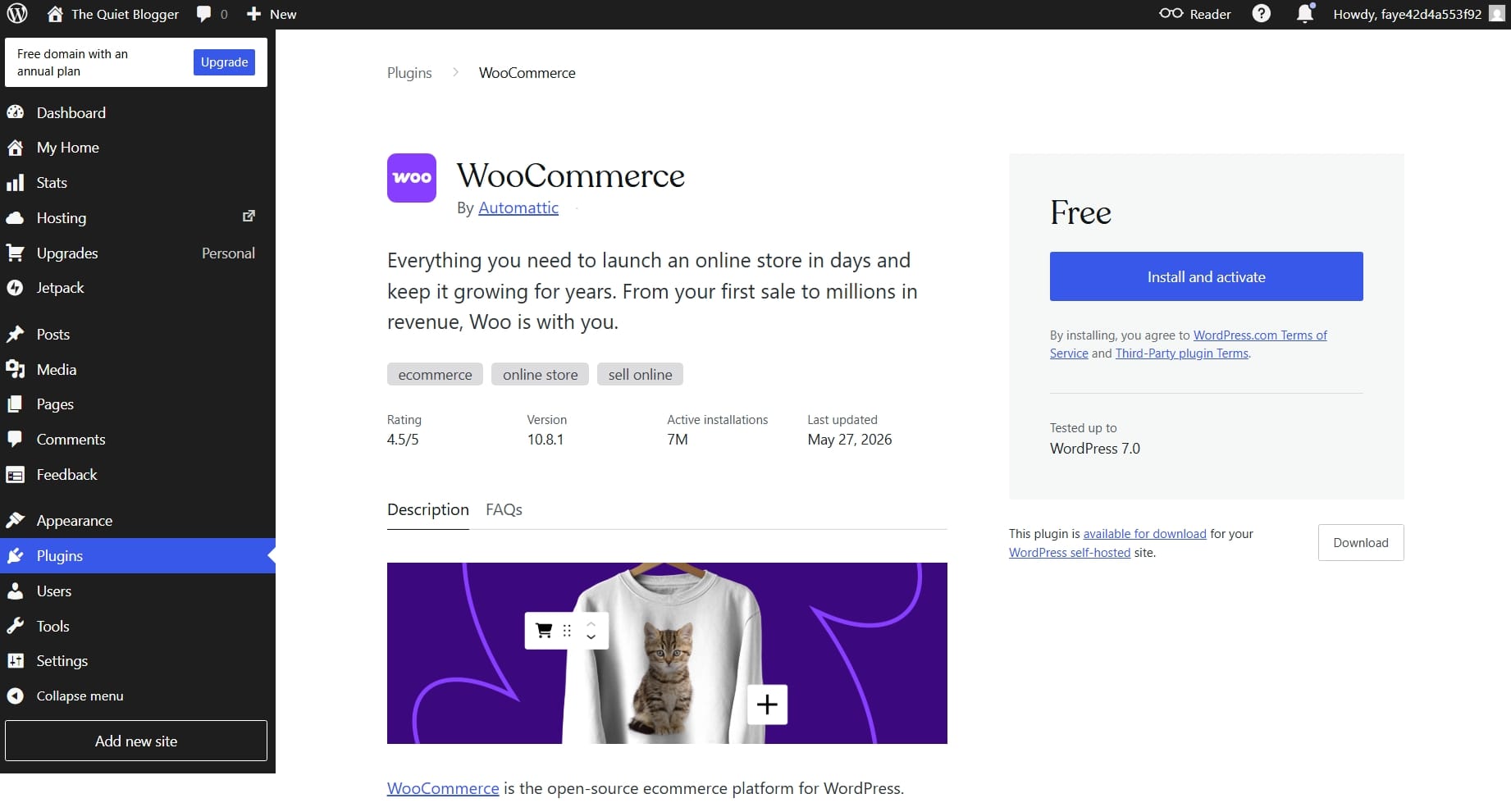
WooCommerce is one of the most powerful ecommerce plugins. It allows you to sell directly from your website.
You can sell:
- Ebooks
- Templates
- Online courses
- Physical products
- Membership subscriptions
- Downloadable products
If you want to monetize beyond affiliate marketing or you already have products available that you would like to sell to your audience, WooCommerce is extremely useful.
3. PrettyLinks
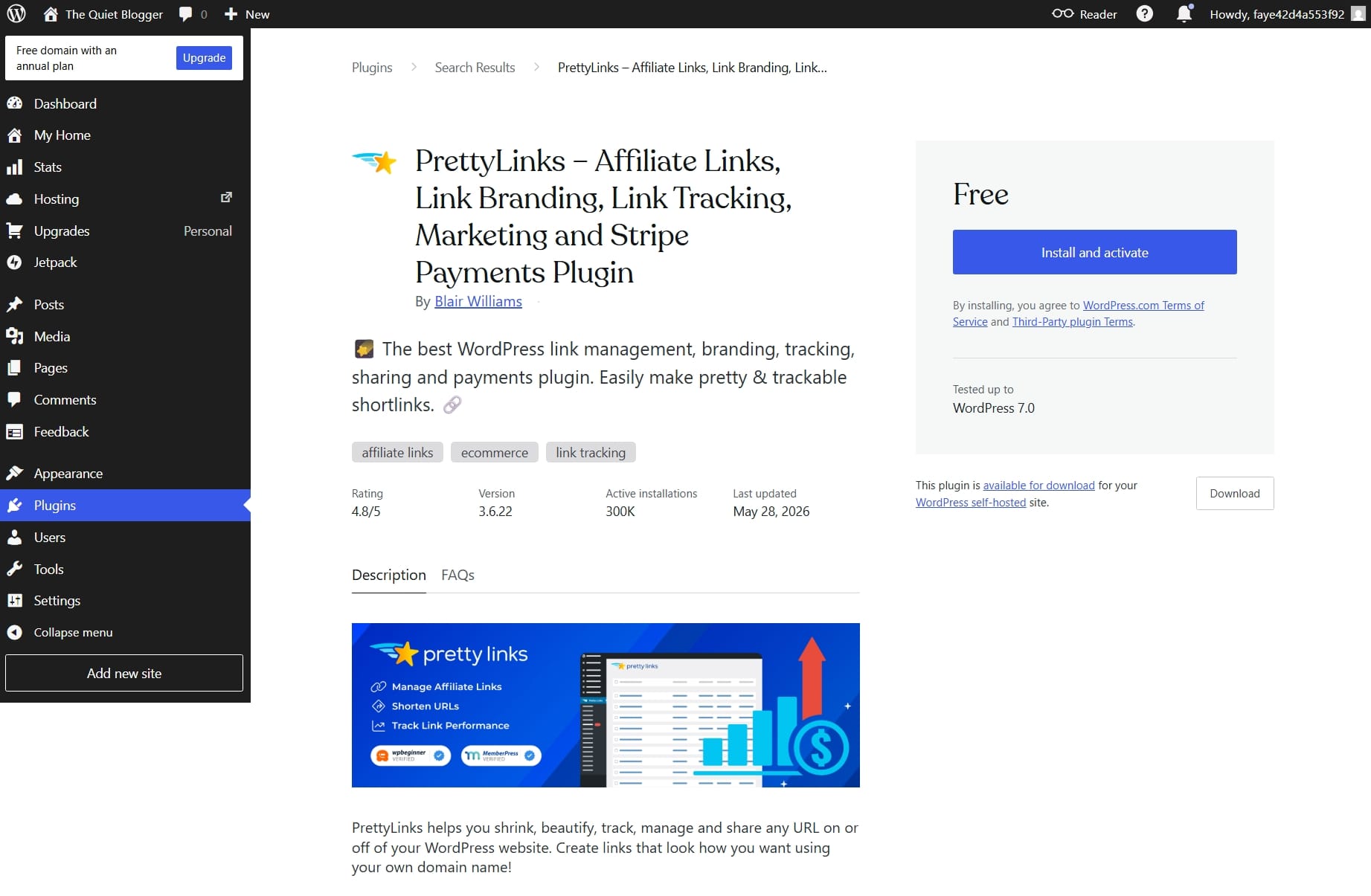
Affiliate bloggers should know this plugin, it's the most popular among bloggers using WordPress.
Affiliate links do look messy.
Example: randomcompanyaffiliate.com?id=9847283
PrettyLinks allows you to create cleaner branded links.
Example: yourwebsite.com/recommends/hosting
A few benefits of using PrettyLinks include:
- Better branding
- Easier management
- Click tracking
- Improved user trust
If affiliate marketing is part of your strategy, this plugin becomes valuable very quickly.
4. Ad Inserter
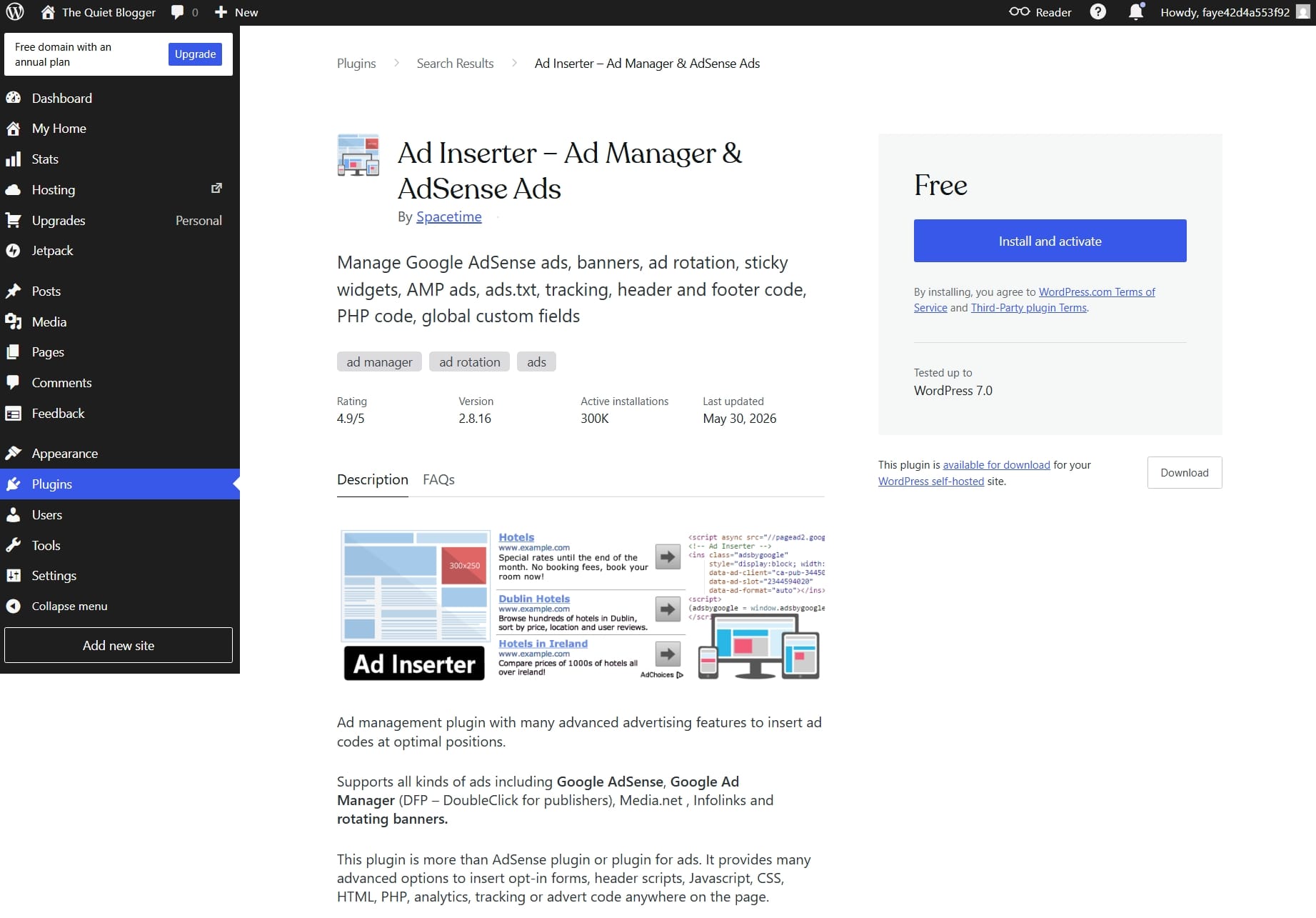
Once traffic grows, a lot of bloggers begin monetizing with ads. Ad Inserter helps you control where advertisements appear.
Useful for Google AdSense, sponsored banners, manual ad placements and all other forms of display advertising management.
5. Kit
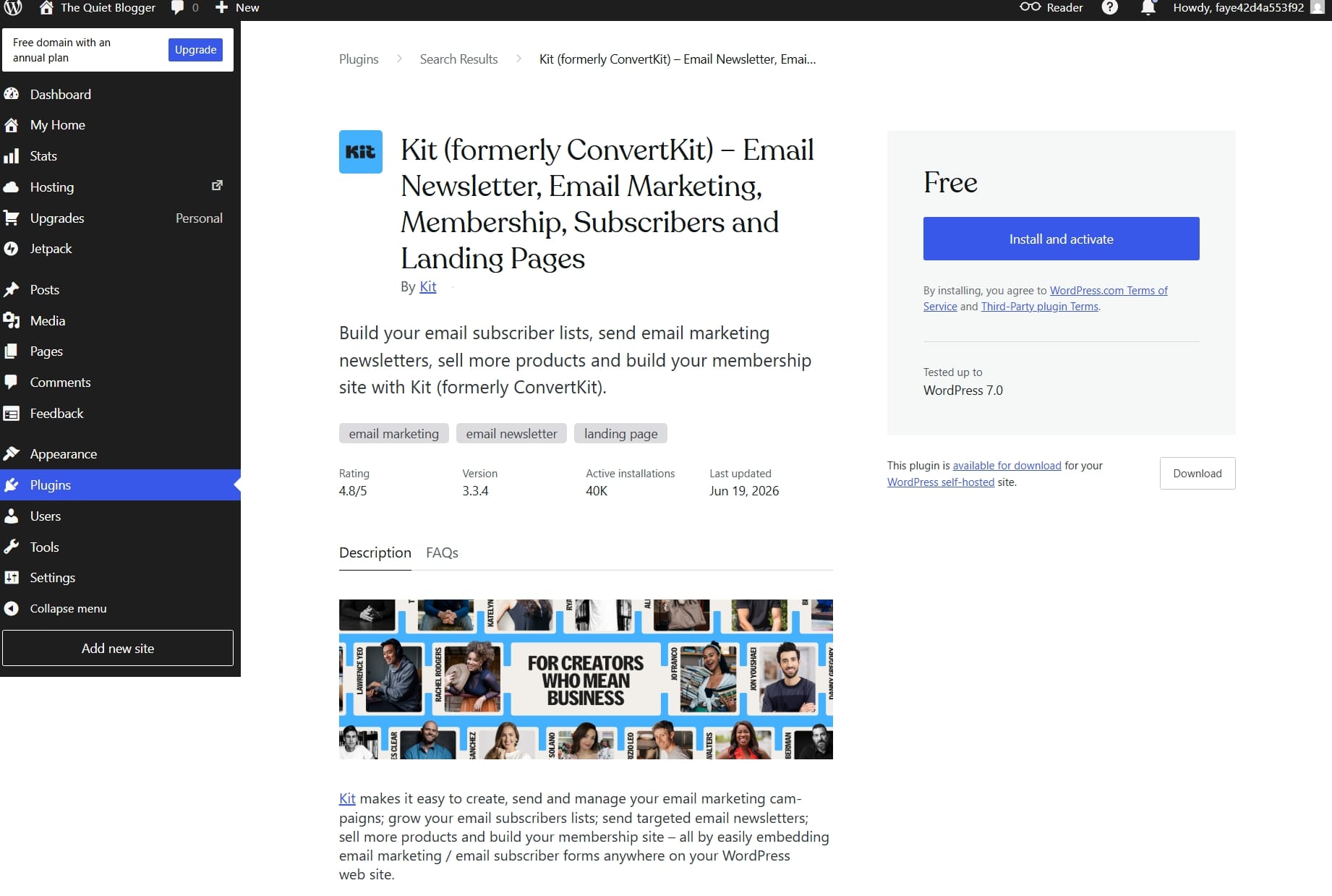
Email marketing is very important as a blogger and Kit is one of the very good options available. It helps bloggers:
- Create landing pages
- Build email forms
- Deliver lead magnets
- Create automated email sequences
- Build subscriber funnels and more.
6. OptinMonster
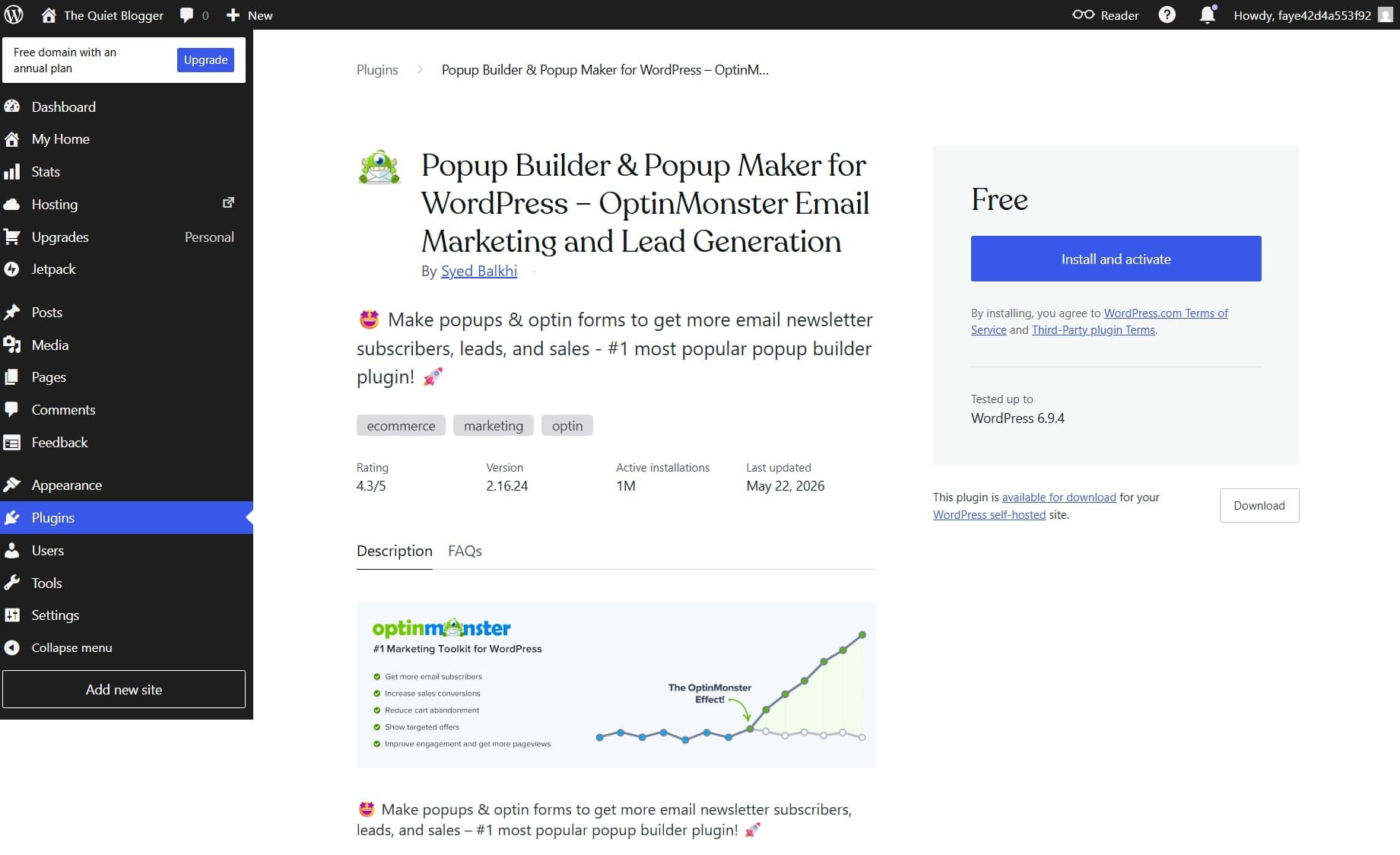
OptinMonster focuses on lead generation. It helps convert website visitors into subscribers. You can create:
- Popups
- Exit intent offers
- Floating bars
- Slide-ins
- Conversion forms
If growing an email list is important, this plugin helps significantly.
7. All In One SEO
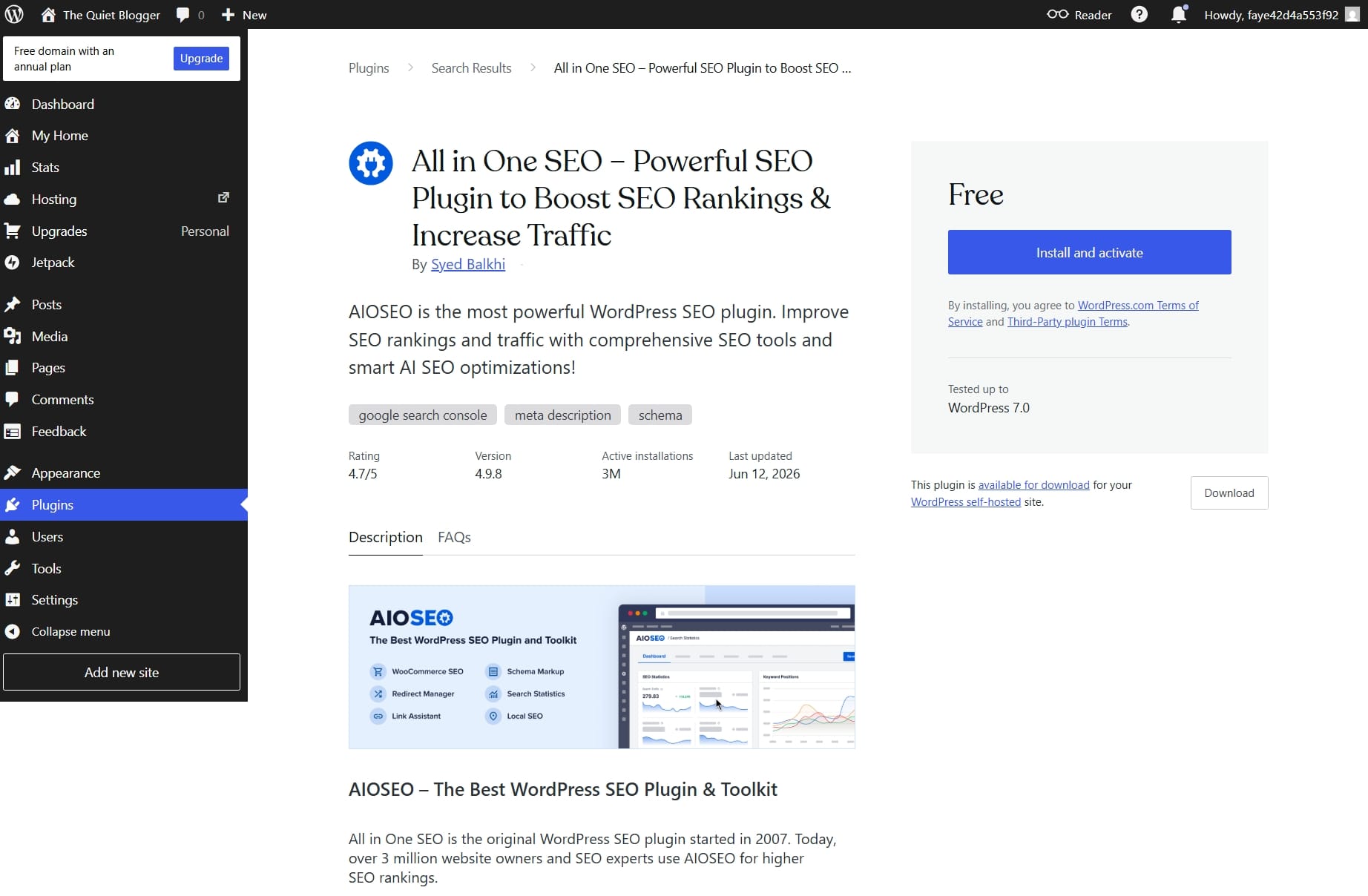
SEO (search engine optimization) is one of the biggest reasons blogs succeed. This plugin helps optimize your content for search engines.
Features of All In One SEO include:
- Meta descriptions
- Sitemap creation
- Schema markup
- Social previews
- SEO scoring
- Technical optimization
It's useful for bloggers trying to grow organic traffic, SEO plugins become very useful.
8. Site Kit by Google
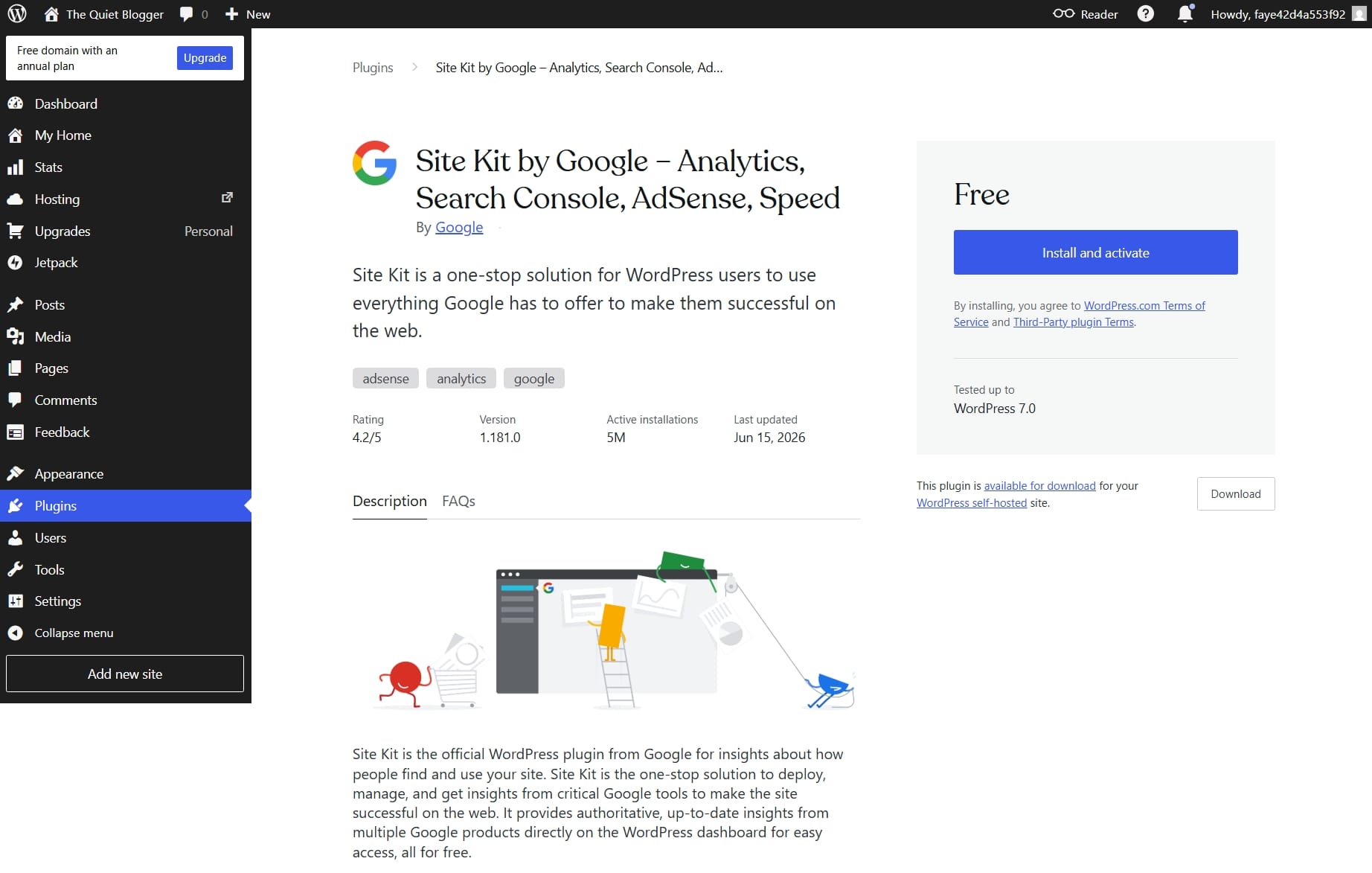
Google offers several important tools. Site Kit connects your website with:
- Google Analytics
- Google Search Console
- Google AdSense
- PageSpeed Insights
So, instead of checking separate dashboards constantly, everything stays connected, making data easier to understand.
How To Install Plugins Directly Inside WordPress.com
This is the easiest installation method.
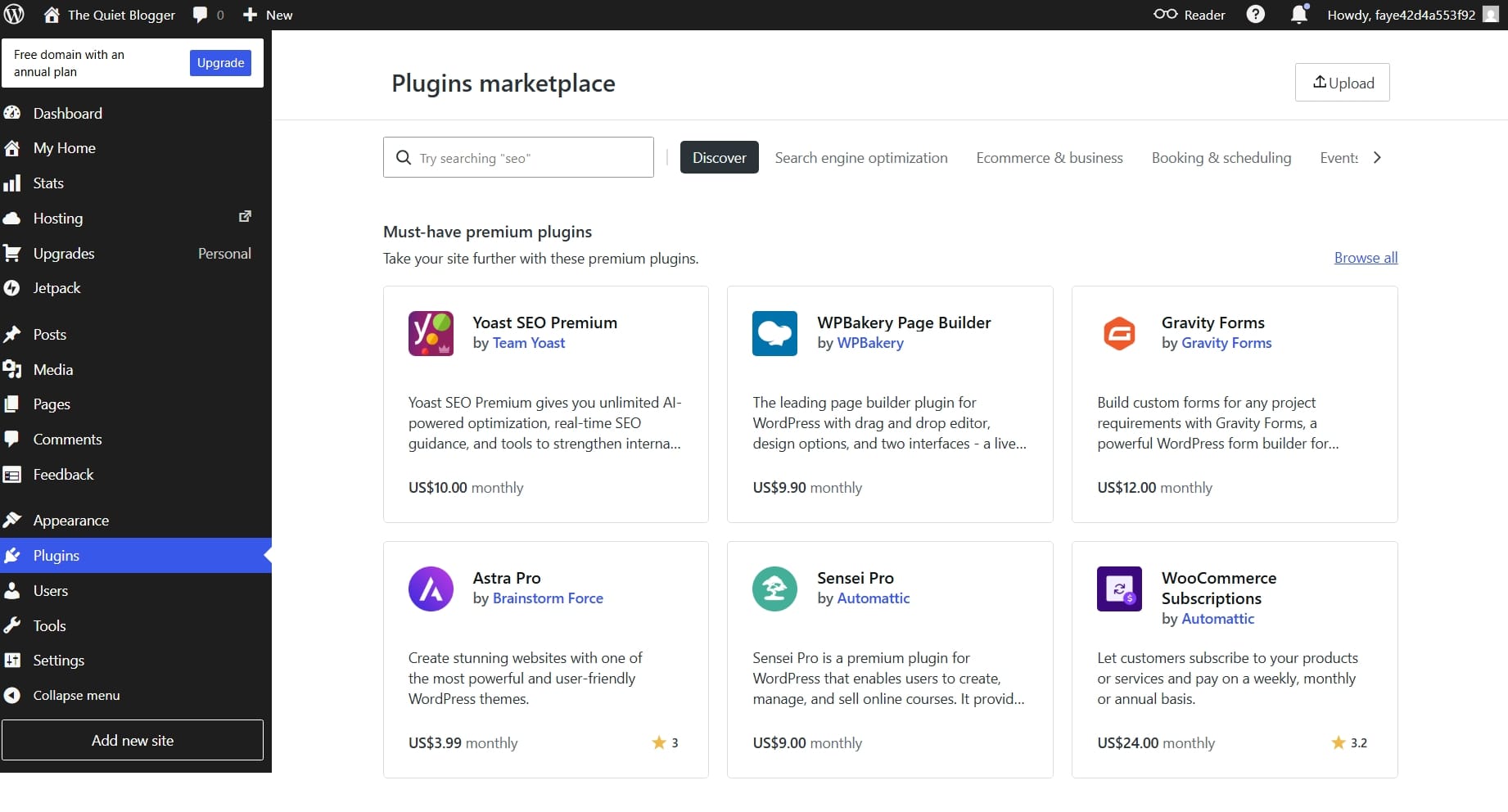
Step 1: Open your WordPress.com dashboard and find the Plugins section on the sidebar.
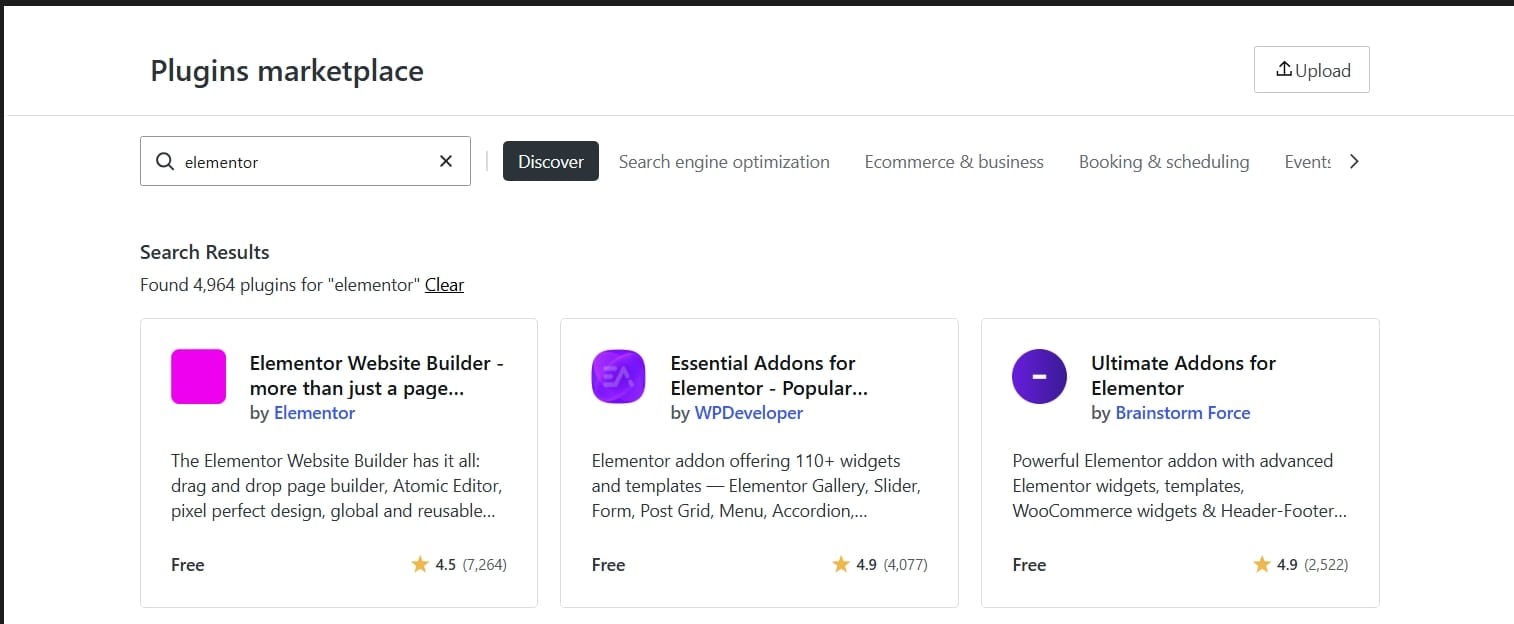
Step 2: Search for the plugin you want and click on it. I'll be searching for Elementor website builder plugin.
Step 3: You'll see an "Install and Activate" button, proceed to click on it.
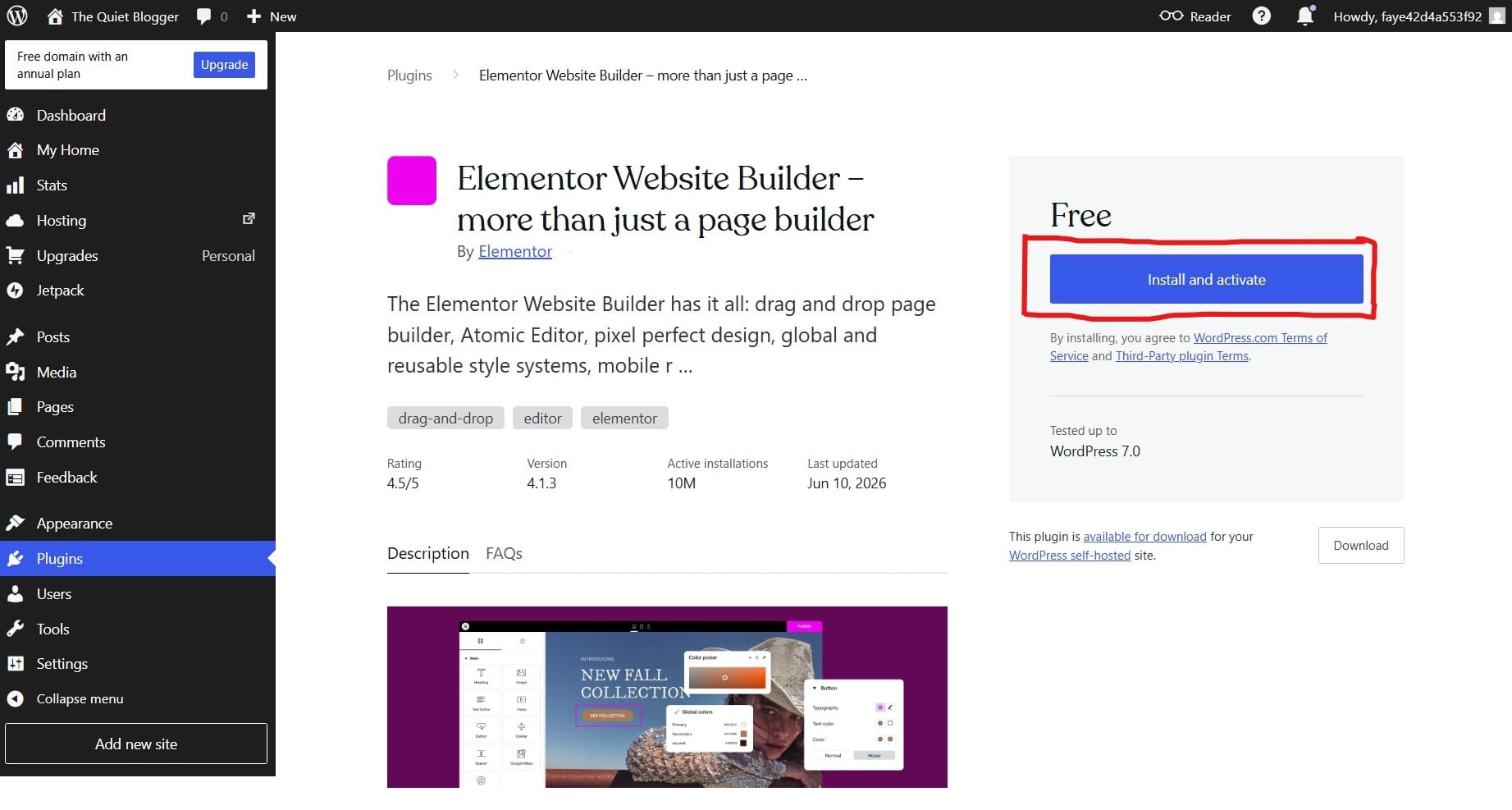
It should take about a minute and install and active and once it's done you can find it under your plugins. As seen in the screenshot below, you can enable auto-updates for your plugin.

Step 4: Once activated, your plugin settings usually appear in your dashboard menu.
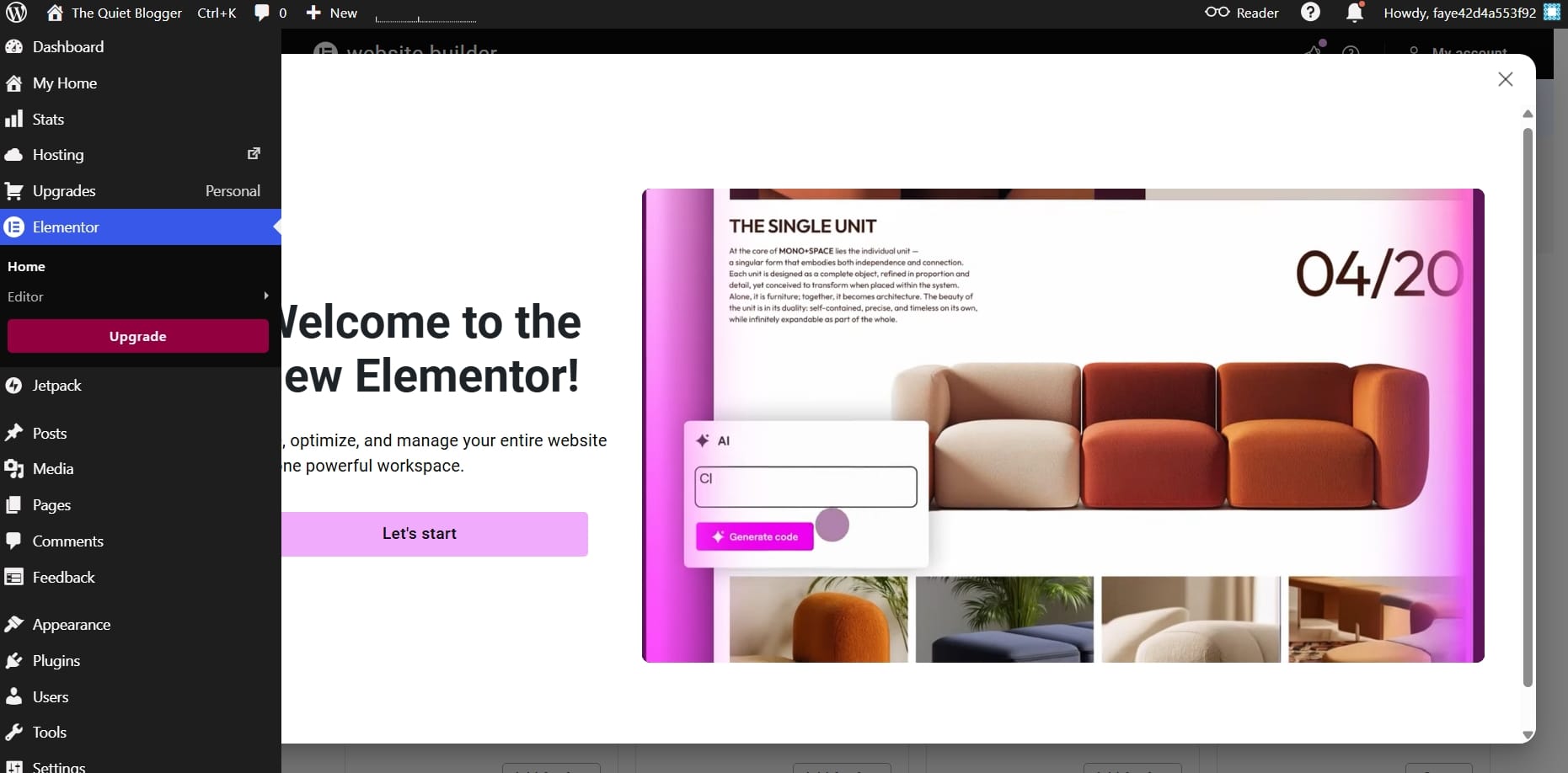
This is how most users install plugins on WordPress.com.
Installing Plugins Using ZIP Files
If you purchase a premium plugin directly from developers or from a plugin marketplace. These plugins most times may not appear inside the WordPress plugin library.
In that case:
Step 1: Download the plugin ZIP file.
Step 2: Open your Plugins dashboard and click Upload Plugin.

Step 3: Select your ZIP file.
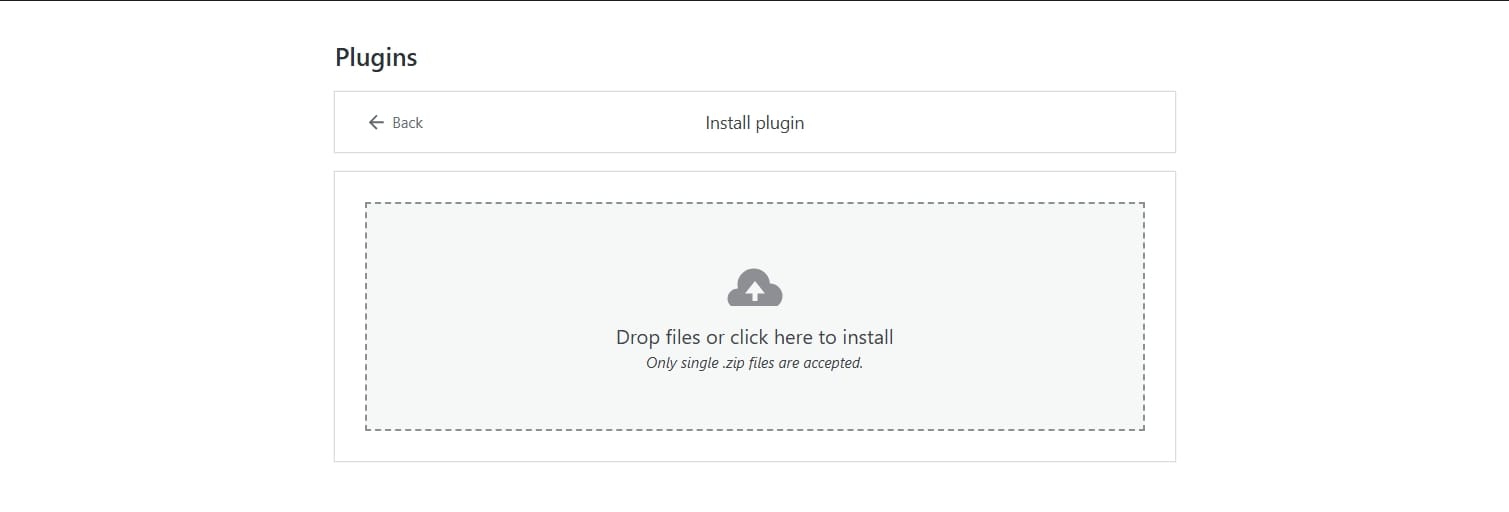
Step 4: Install and activate.
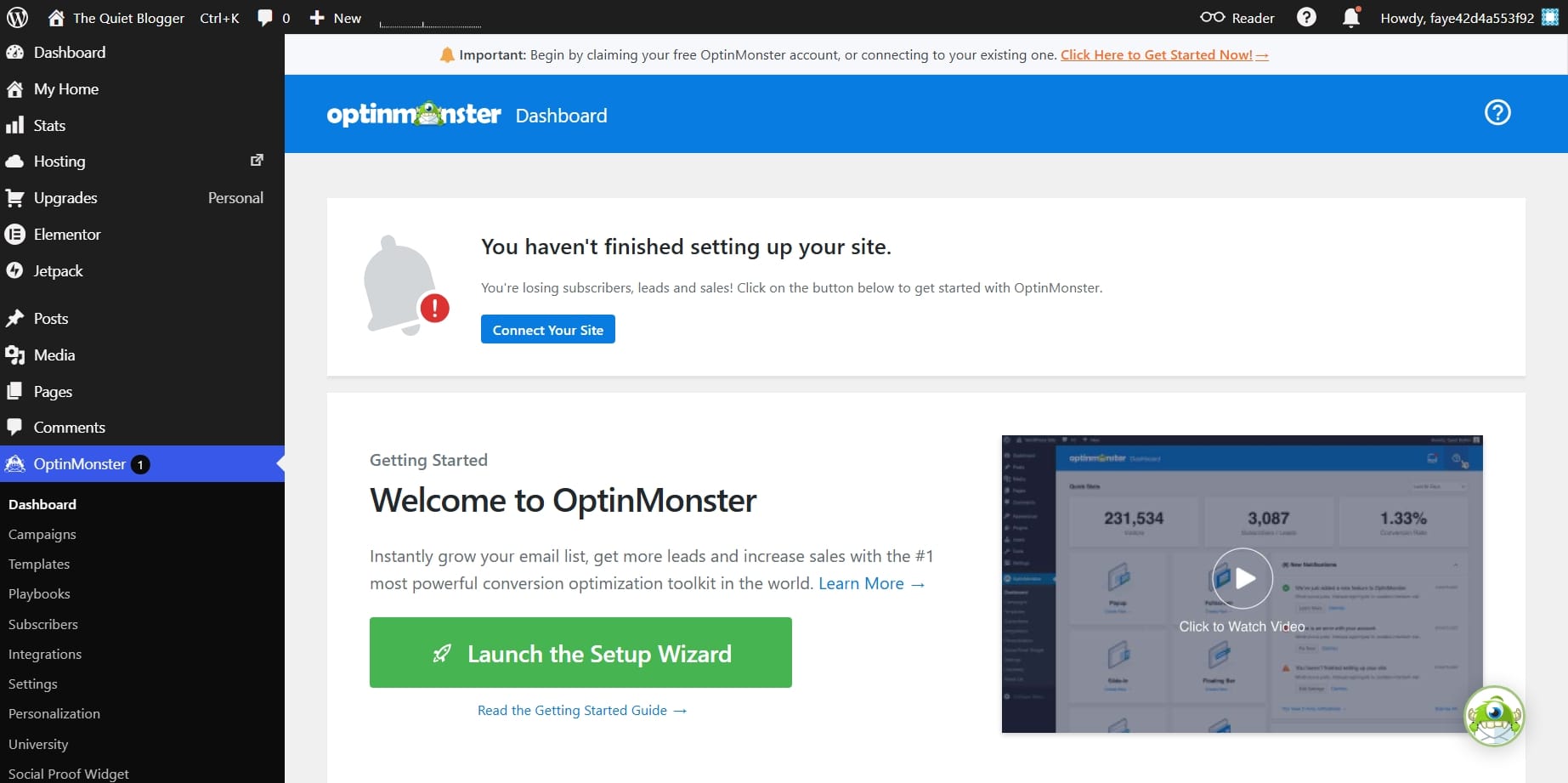
I downloaded OptinMonster plugin as a ZIP file and uploaded it. Upon completion, I was redirected to create a free account because I didn't have 0ne.
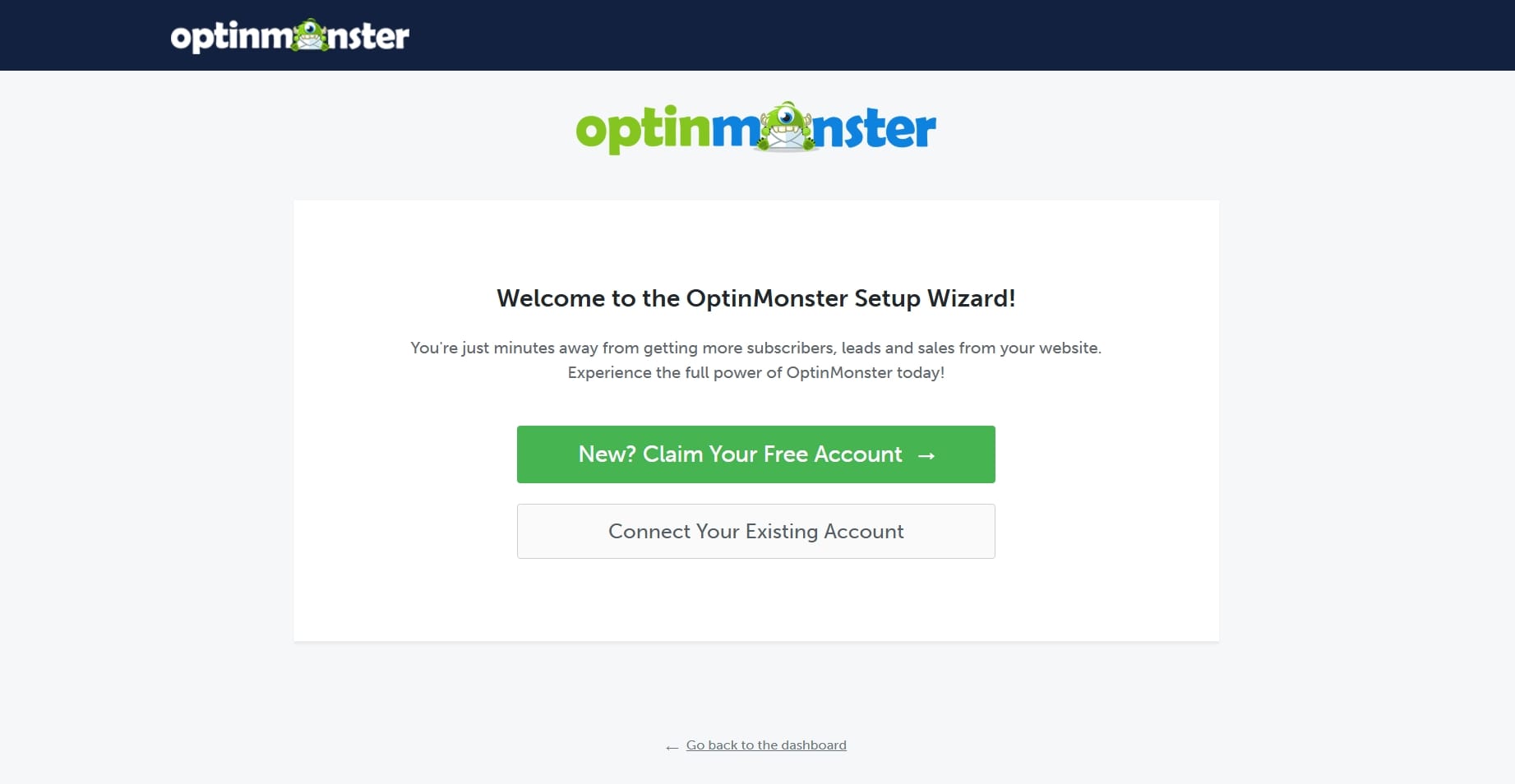
The plugin is now installed on my site but to activate it, I would need to create a free account.
This method is commonly used for premium plugins.
Installing Plugins Through SFTP
This method is more advanced, and you most likely will never need this.
SFTP allows direct access to your website files. This is useful when manually transferring plugin files. It's only available on WordPress.com Business and Ecommerce plans.
The process usually looks like this: You install FileZilla or another SFTP client, connect using server credentials, then you locate the plugin folder inside WordPress, upload plugin files manually and activate plugin inside your WordPress dashboard.
This method is usually for developers.
Here's a video tutorial:
Important Note About Premium Plugins
Not every plugin updates automatically. This is especially true for plugins purchased outside the official WordPress plugin library.
Examples include:
- ThemeForest plugins
- Premium developer plugins
- Third-party premium themes
Sometimes updates are distributed manually, and other times developers create their own update systems.
Always check how updates are handled. Ignoring plugin updates creates security risks.
Pros Of Using Plugins
Plugins make WordPress incredibly flexible. Advantages include:
- Add advanced features quickly
- Save development costs
- Improve SEO
- Improve monetization
- Improve design flexibility
- Add ecommerce capabilities
- Build better subscriber systems
- Extend website functionality
They allow beginners to build sophisticated websites without knowing how to code.
Cons Of Using Too Many Plugins
Too many plugins create problems. Some risks include:
- Slow loading speed
- Plugin conflicts
- Security vulnerabilities
- Website crashes
- Higher maintenance requirements
- Compatibility problems after updates
A website with fewer high-quality plugins often performs better.
To Conclude About Plugins
Your finance blog from the previous tutorial represents the foundation of your online business, plugins represent the tools that help expand that business over time.
Do remember something important. The goal is not installing as many plugins as possible. The goal is building a fast, efficient website that helps your readers and supports your long-term business goals.
Frequently Asked Questions About WordPress.com Plugins
Do I need plugins to run a WordPress.com blog?
Not always. One major advantage of WordPress.com is that it already includes many built-in features such as security protection, SEO tools, analytics, contact forms, social sharing buttons, email subscriptions, and backups.
Plugins become more useful when you need advanced customization or want to add specific business features.
Can I install plugins on every WordPress.com plan?
No. Plugin installation is only available on paid WordPress.com plans. If you are using the free plan plugin access is not available.
How many plugins should I install on my WordPress.com blog?
There is no exact number, but it is always better to install only the plugins you truly need. Too many plugins can slow down your website, create compatibility issues, and make managing your site more difficult over time.
What happens if a plugin stops being updated?
An outdated plugin can become a security risk and may stop working properly after future WordPress updates. Before installing any plugin, always check when it was last updated and avoid plugins that appear abandoned by their developers.
Are free plugins good enough for bloggers?
In many cases, yes. Many free plugins offer excellent functionality and are more than enough for beginner bloggers. Premium plugins usually become useful when you need advanced features, better support, or more control as your blog grows.
You might also like
100+ Blogging Terms Every Beginner Should Know (2026)
New to blogging? This comprehensive blogging glossary explains over 100 common blogging terms in simple English, helping you better understand SEO, content creation, monetization, and growing a successful blog.
12 Beautiful Blog Website Themes for New Bloggers (2026)
A great blog theme does more than make your website look beautiful—it helps build trust, strengthen your brand, and improve the reader experience. Here are 12 of the best blog website themes for new bloggers across Ghost, Beehiiv, WordPress.com, and Hyvor Blogs.
What Is a Blog and How to Start a Blog (Beginner’s Complete Guide)
Everything you need to start a blog from scratch, what a blog is, how it works, and the exact steps to launch yours today, even with zero experience.